
In a world where smartphones are practically an extension of our hands, knowing how to put your iPhone to sleep can feel like an art form. Whether it’s to save battery life or to avoid that awkward moment when your phone decides to launch a random app during a meeting, mastering this simple trick is essential.
Fear not, tech-savvy reader! Putting your iPhone to sleep is as easy as pie—if pie were made of pixels and had a side of swiping. With just a few taps, you can silence the incessant notifications and give your device a well-deserved nap. So, let’s dive into the quick and quirky ways to send your iPhone off to dreamland, ensuring you stay in control of your digital life without losing your sense of humor.
Understanding Sleep Mode on iPhone
Sleep mode serves as a vital feature on iPhones, allowing users to conserve battery life and prevent unintended interactions. Engaging this function is straightforward and offers several advantages.
What Is Sleep Mode?
Sleep mode refers to the state where an iPhone’s screen turns off, minimizing power consumption while keeping functions active. In this state, notifications still come through, and alarms remain functional. Activating it helps maintain device responsiveness without the screen constantly illuminating. Users often enable sleep mode manually through the side button or can set timers for automatic activation.
Benefits of Using Sleep Mode
Using sleep mode presents numerous benefits. First, it significantly enhances battery longevity, as the display consumes the most power. Second, it prevents accidental touches from disrupting activities or causing unintended app launches. Third, sleep mode allows users to maintain privacy during meetings or in public spaces, as the screen remains off. Regular use improves overall device efficiency, ensuring that the iPhone remains ready for engagement when needed.
Methods to Put Your iPhone to Sleep
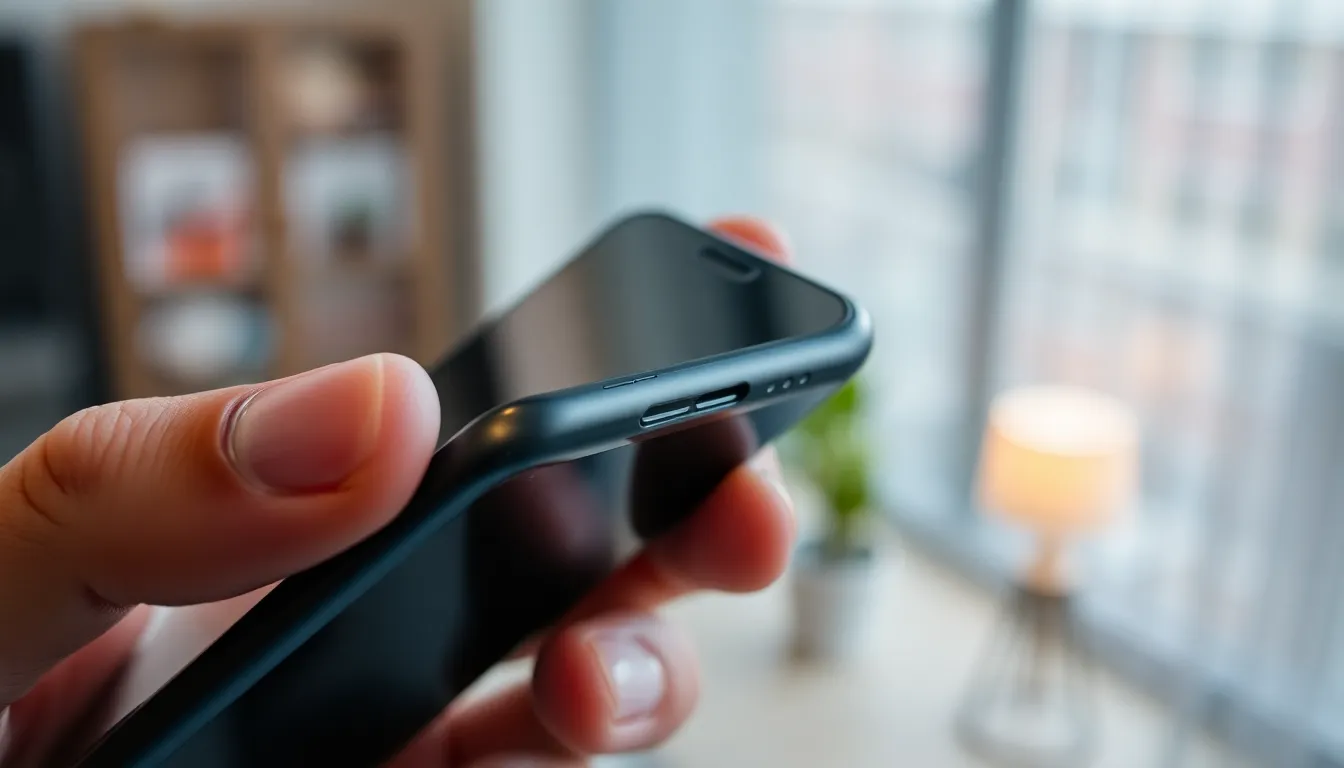
Putting an iPhone to sleep is straightforward. Users can choose from several methods to quickly activate sleep mode.
Using the Side Button
Pressing the side button effortlessly turns off the screen. This button, located on the right side of the device, initiates sleep mode within seconds. A single press puts the iPhone to sleep, conserving battery and preventing accidental touches. Keeping this method in mind simplifies managing the device while on the go. Users can also press the side button again to wake the device easily.
Using the AssistiveTouch Feature
AssistiveTouch offers an accessible method for putting the iPhone to sleep. Activating this feature enables users to tap a virtual button on the screen, which opens a menu. Within the menu, selecting “Device” reveals an option to “Lock Screen.” This approach is especially useful for those who find it challenging to press physical buttons. Activating AssistiveTouch enhances usability, ensuring all users can manage their devices efficiently.
Common Issues and Troubleshooting
Users may encounter issues while trying to put their iPhone to sleep. Troubleshooting these problems can restore functionality and improve the user experience.
iPhone Does Not Sleep
When an iPhone doesn’t enter sleep mode, several factors could be at play. Check the settings first. The “Auto-Lock” feature may be disabled or set to “Never.” Adjusting this setting allows the device to sleep automatically after a set period. Another possibility lies in active applications. Certain apps running in the background can prevent the screen from dimming. Closing or minimizing these applications often resolves this issue. Restarting the device sometimes helps too, as it refreshes system processes.
Resetting Sleep Settings
Resetting sleep settings can restore normal operation. Start by navigating to the “Display & Brightness” section in the settings app. Here, users can adjust features like “Auto-Lock” and “Night Shift.” Setting “Auto-Lock” to a shorter duration ensures the phone sleeps more quickly. If problems persist, performing a full reset of settings is also an option. This process, which can be accessed through “General” and then “Transfer or Reset iPhone,” clears problematic settings but retains personal data. Users can easily recover optimal functionality after resetting.
Alternative Options for Managing Screen Time
Managing screen time becomes easier with helpful features on the iPhone. Two practical options include setting up Auto-Lock and utilizing Do Not Disturb mode.
Setting Up Auto-Lock
Auto-Lock automatically puts the iPhone to sleep after a set period of inactivity. Users can find this option under Settings, then Display & Brightness. Selecting Auto-Lock allows users to choose time increments ranging from 30 seconds to 5 minutes. For immediate changes, a shorter duration offers a more efficient way to conserve battery life. Users also can select “Never” if they prefer to keep the screen active for longer periods. Adjusting this setting prevents unnecessary battery drain while reducing distractions.
Using Do Not Disturb Mode
Do Not Disturb mode silences notifications and alerts, minimizing interruptions during meetings or quiet moments. To enable this feature, go to Settings, then focus, and tap Do Not Disturb. Users can schedule this feature for specific times or activate it manually when needed. During its activation, the screen remains active, but alerts don’t disrupt the user. Custom settings allow users to control which calls and messages can bypass this mode, ensuring essential contacts can still reach them.
Mastering the art of putting an iPhone to sleep is essential for enhancing battery life and maintaining device control. With simple methods like using the side button or AssistiveTouch users can easily manage their devices on the go.
Incorporating features like Auto-Lock and Do Not Disturb mode further optimizes screen time and reduces distractions. By regularly utilizing these techniques users can ensure their iPhones are ready when needed while enjoying a seamless experience. Embracing these practices not only boosts efficiency but also adds a touch of convenience to daily life.